

วิธีการตั้งค่า G-mail ใน Microsoft Outlook 2013/2016 แบบ POP3 และ IMAP
[/vc_column_text][vc_column_text]
- เปิด Outlook จากนั้นจะเจอหน้าแรก ให้คลิก Next ไปก่อน
- เลือก Yes แล้วคลิก Next
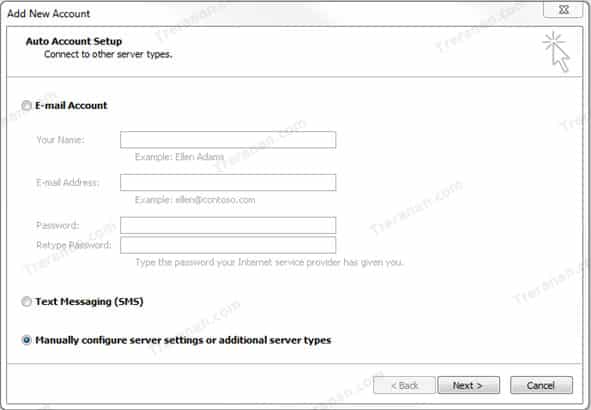
- คลิกเลือก Manually configure server setting or additional server types
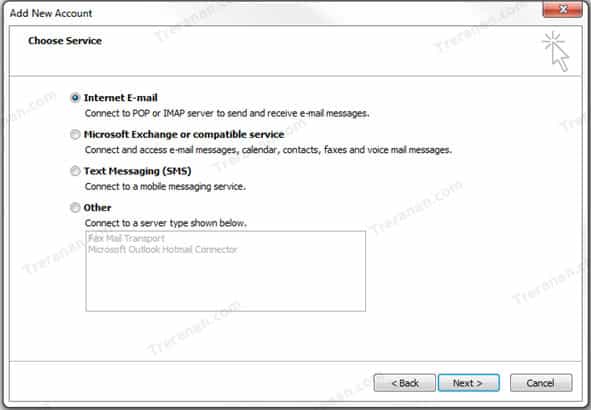
4. หน้า Choose Service เลือกที่ POP3 or IMAP
- สำหรับการตั้งค่าแบบ POP3
- สำหรับการตั้งค่าแบบ IMAP
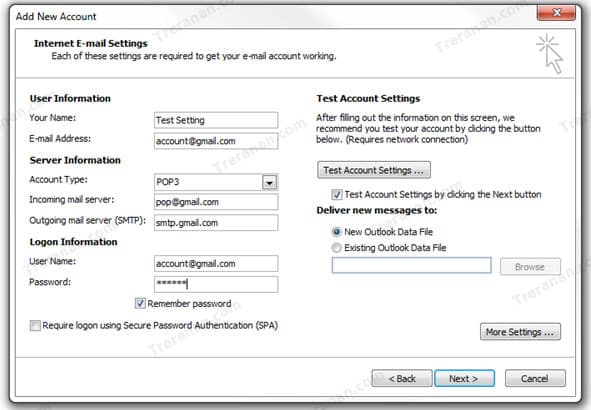
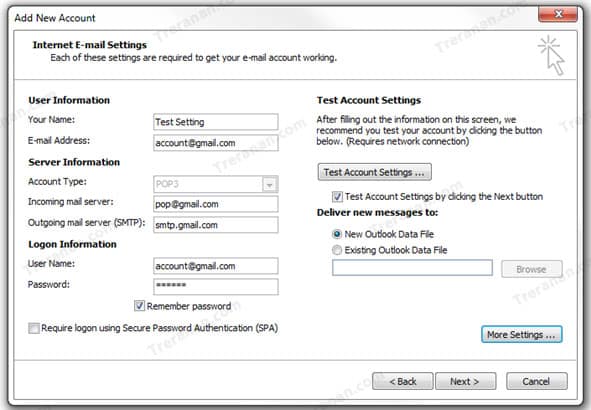
- มาถึงหน้านี้จะเป็นการตั้งค่า Email Account Gmail ของเรา
สำหรับการตั้งค่าแบบ POP3
- Your Name: ชื่ออีเมล์
- E-mail Address: <account gmail>
- Account Type: เลือก POP3
- Incoming mail server: pop.gmail.com
- Outgoing mail server: (SMTP): smtp.gmail.com
- User Name: <account gmail>
- Password: <password email>
- Remember password: ตั้งค่าให้จำพาสเวิร์ดอีเมล์ (แนะนำให้เลือกไว้)
- คลิก More Settings
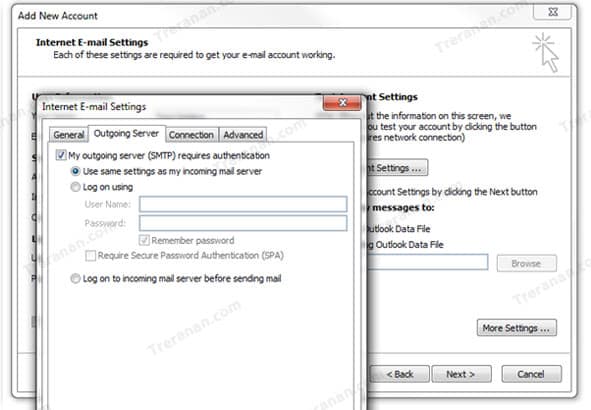
- เลือกแถบ Outgoing Server แล้วคลิกที่ My outgoing server (SMTP) requires authentication ตามรูป ยังไม่ปิดหน้านี้นะ
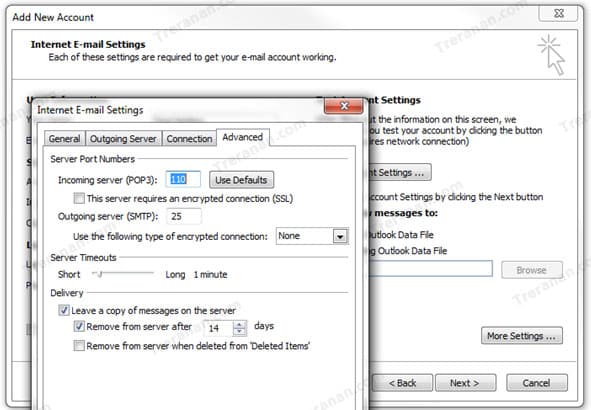
7. คลิกแถบ Advanced
-
- เลือกที่ช่อง This server requires an encrypted connection (SSL)
- Outgoing server (SMTP) ระบุ Port: 465
- Use the following type of encrypted connection เลือก SSL
- คลิก Ok
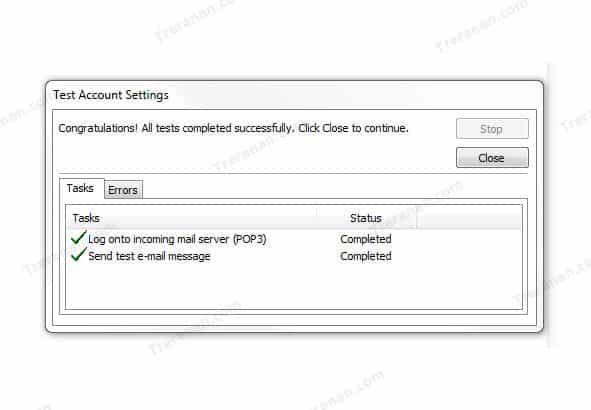
8. กลับมาที่หน้านี้คลิก Next ไป แล้วจะเป็นการทดสอบ รับส่ง อีเมล์ หากไม่มีอะไรผิดพลาดจะเป็นเครื่องหมายถูกทั้งสองอัน ระบบจะทดสอบรับส่งอีเมล หากไม่มีอะไรผิดพลาดก็จะเขียวๆแบบรูปตัวอย่าง ให้คลิก Close
 9. คลิก Finish
สำหรับการตั้งค่าแบบ IMAP
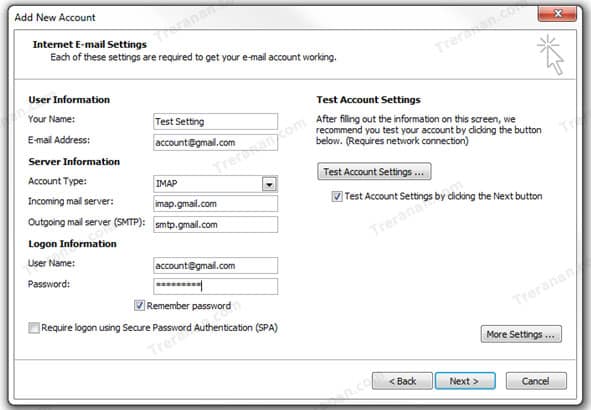
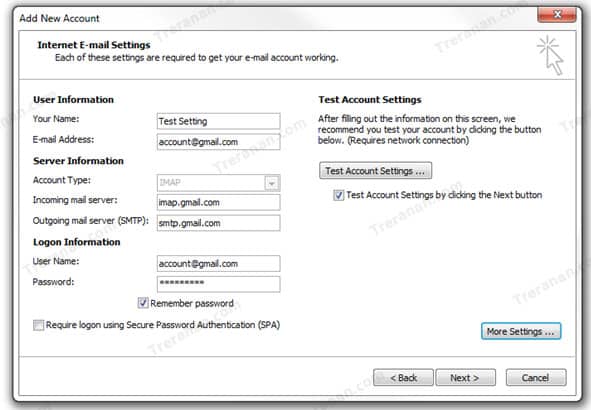
- ตั้งข้อมูลบัญชีของ Gmail ของเรา
- Your Name: ชื่ออีเมล์
- E-mail Address: <account gmail>
- Account Type: เลือก IMAP
- Incoming mail server: gmail.com
- Outgoing mail server: (SMTP): gmail.com
- User Name: <account gmail>
- Password: <password email>
- Remember password: ตั้งค่าให้จำพาสเวิร์ดอีเมล์ (แนะนำให้เลือกไว้)
- คลิก More Settings
2. เลือกแถบ Outgoing Server แล้วคลิกที่ My outgoing server (SMTP) requires authentication ตามรูป ยังไม่ปิดหน้านี้เช่นเดียวกันกับ pop3
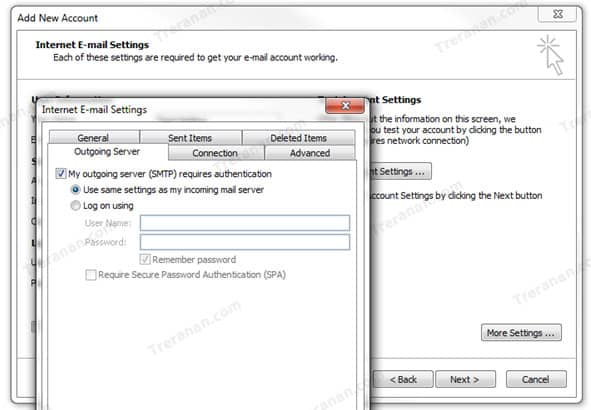
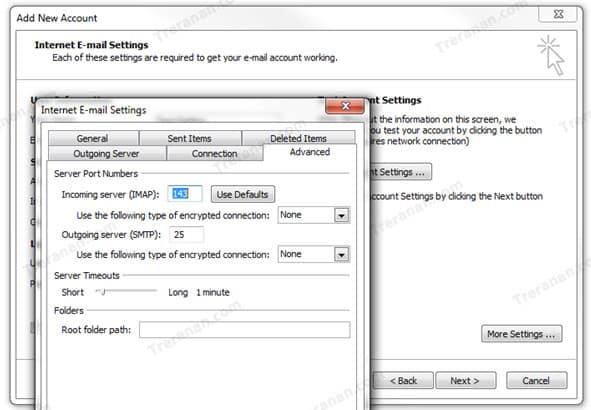
3. คลิกแถบ Advanced
- incoming server (IMAP) ระบุ Port: 993
- Use the following type of encrypted connection ภายใต้ IMAP เลือก SSL
- Outgoing server (SMTP) ระบุ Port: 465
- Use the following type of encrypted connection ภายใต้ SMTP เลือก SSL
- คลิก Ok
4. คลิกที่ปุ่ม Next ตรงนี้จะเป็นการทดสอบรับส่งอีเมล์
- จบขั้นตอนการตั้งค่า Gmail ใน Outlook